How to write a page using Quarto Markdown
GitHub Pages transforms plain text files into HTML webpages. In this template, files use the .qmd extension and follow Quarto Markdown syntax. Below are examples of the most commonly used formatting structures.
Sections and Subsections
Section headers are created by adding one or more # symbols followed by a space. Typing a single # creates a main section header. Adding more symbols creates deeper hierarchies; for example, typing ## This is a subsection generates a secondary heading. Similarly, using three symbols like ### This is a sub-subsection produces a tertiary heading.
This is a subsection
This is a sub-subsection
To make a section cross-referenceable, append an identifier starting with #sec- to the header. For example, typing ## Mathematical Equations {#sec-maths} allows the section to be referenced anywhere in the document using @sec-maths.
Mathematical Equations
Inline equations, such as \(x^2+y^2=r^2\), are written by enclosing the formula in single $ symbols directly within the text. To write a standalone equation on its own line, enclose the formula in double $$ symbols. To make the equation cross-referenceable, append an identifier to the closing $$. This identifier must strictly begin with the #eq- prefix for Quarto to recognize it as an equation:
$$
  x=\frac{-b\pm \sqrt{b^2-4ac}}{2a} \,,
$$ {#eq-secondorder}
Once processed, the equation is displayed and numbered automatically:
\[ x=\frac{-b\pm \sqrt{b^2-4ac}}{2a} \,, \tag{1}\]
This equation can then be referenced in the text using @eq-secondorder, which automatically renders a clickable link with the appropriate prefix, such as Equation 1.
If the automatic prefix needs to be suppressed, place the reference with a minus sign inside parentheses. For instance, typing (-@eq-secondorder) will suppress the word “Equation” and render just the number in-between parentheses, resulting in (1).
For complex mathematical structures such as systems of equations or multi-line formulas, Quarto supports standard LaTeX inner environments like aligned, split, and gathered within the double $$ blocks. These allow for precise vertical alignment and grouping while sharing a single reference number:
$$
\begin{aligned}
  A &= B + C \\
  X &= Y - Z
\end{aligned}
$$ {#eq-systems}
\[ \begin{aligned} A &= B + C \\ X &= Y - Z \end{aligned} \tag{2}\]
Multi-labeled equations, like the standard LaTeX align environment, are not supported.
Text Formatting and Lists
Text formatting is achieved by enclosing words in asterisks. Using single asterisks produces italic text (e.g. *italic*), while double asterisks produce bold text (e.g. **bold**). One can also display colored text using [red text]{style="color: red;"}, which produces a text in red color.
Unordered lists are created using the - symbol, where the level of indentation determines the hierarchy of the items:
- Level 1 item
  - Level 2 item
    - Level 3 item
This syntax generates the following bulleted list:
Level 1 item
Level 2 item
Level 3 item
Ordered lists use numbers instead of dashes. Typing 1. for every item is sufficient, as the list will automatically number itself correctly upon rendering:
1. First element
1. Second element
1. Third element
The compiled list appears as:
First element
Second element
Third element
Figures and Tables
To insert an image, provide a caption inside square brackets and the file path inside parentheses. A label and display attributes, such as width, can be appended inside curly braces. The label must strictly begin with the #fig- prefix for Quarto to recognize and number the image correctly:
{#fig-frog width="4cm"}This places the image in the document, allowing it to be referenced anywhere in the text using @fig-frog (e.g. Figure 1):
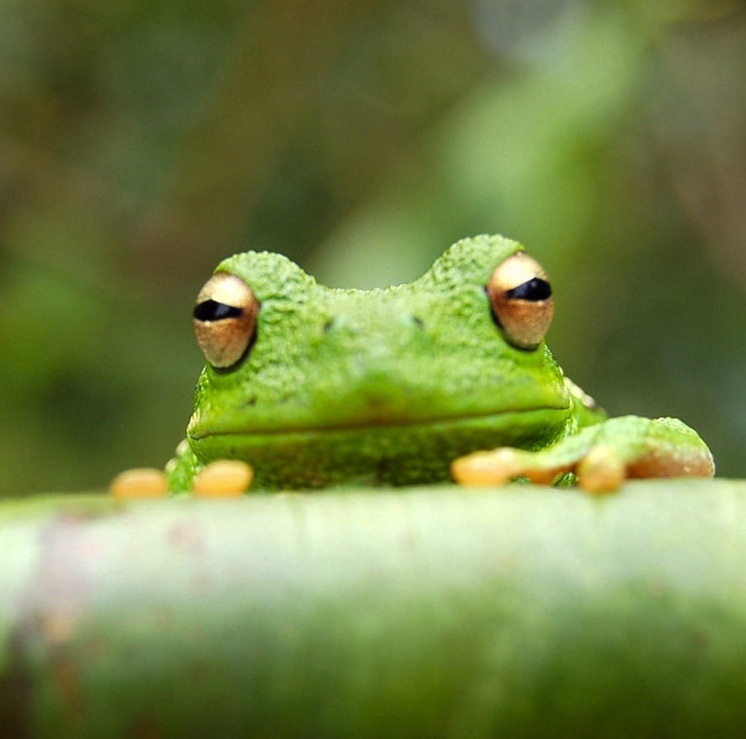
Figure 1: Default frog picture.
Tables are constructed using vertical pipes (|) to separate columns and hyphens (-) to divide the header from the content. Colons (:) are added to the divider to control text alignment. A caption and a reference label can be placed at the bottom. The label must strictly begin with the #tbl- prefix for Quarto to recognize and number the table correctly:
| Column 1 | Column 2 | Column 3 |
|:---------|:---------|:---------|
| a        | b        | c        |
| d        | e        | f        |
: Table caption {#tbl-example}
The resulting formatted table can then be referenced using @tbl-example (e.g. Table 1):
Column 1 |
Column 2 |
Column 3 |
|---|---|---|
a |
b |
c |
d |
e |
f |
Blockquotes and Callouts
To emphasize a quote, start the line with a > symbol:
> "If it is on the internet... it must be true."
> - Abraham Lincoln
The text is then visually set apart as a blockquote:
“If it is on the internet… it must be true.” - Abraham Lincoln
Quarto Markdown also features Callout Blocks to draw attention to notes, warnings, or tips. These are created by wrapping the text in three colons (:::) and specifying the desired callout type:
:::{.callout-note}
This is a helpful note! The options `.callout-warning`, `.callout-tip`, `.callout-caution`, and `.callout-important` change the color and icon of the box.
:::
The rendered callout box provides a distinct visual element:
This is a helpful note! The options .callout-warning, .callout-tip, .callout-caution, and .callout-important change the color and icon of the box.
Code Snippets
Short, inline code within a sentence is formatted by enclosing the text in single backticks (`). For multi-line code blocks with syntax highlighting, enclose the block in triple backticks and specify the programming language on the first line:
```cpp
float sum (float a, float b) {
  return a + b;
}
```
This displays the code block with the appropriate language-specific coloring:
float sum (float a, float b) {
  return a + b;
}
Links, Footnotes, and Citations
Hyperlinks to external websites are created by placing the link text in square brackets followed by the URL in parentheses. Typing [GitHub Repository](https://github.com/MKReyesH/ScientificWiki) renders as a clickable link (e.g. GitHub Repository).
To link to another page within the same wiki or project, use the exact same syntax but replace the URL with the relative path to the target .qmd file. Typing [second page](/doc/Examples/example2.qmd) creates a link to the second page.
To link to a specific section, append a # followed by the section’s heading identifier (the heading name in lowercase, using hyphens instead of spaces). This can be used to navigate to sections on the same page or on a different page. Typing [first section](#sections-and-subsections) links to the first section on this page. Typing [other section](/doc/Examples/example2.qmd#target-section) links to a specific section on another page.
Footnotes are added using a caret and an identifier inside square brackets. The actual content of the footnote is defined anywhere else in the document by matching the identifier, followed by a colon and the text:
This is a sentence with a footnote[^1].

[^1]: This is the text of the footnote.
When rendered, a superscript number is inserted into the text, and the note is placed at the bottom of the page1.
To cite references from a bibliography file, place the @ symbol and the citation key inside square brackets. Typing [@ReyesHung:2023udr] produces a formatted citation in the text (e.g. [1]). Multiple citations within the same brackets are separated by semicolons (e.g. [@ReyesHung:2023udr; @AnotherCitation]).
References
Footnotes
For example, this is a footnote.↩︎